Safety Check
Before the drone flies automatically, LINIAair asks you to confirm the flight.
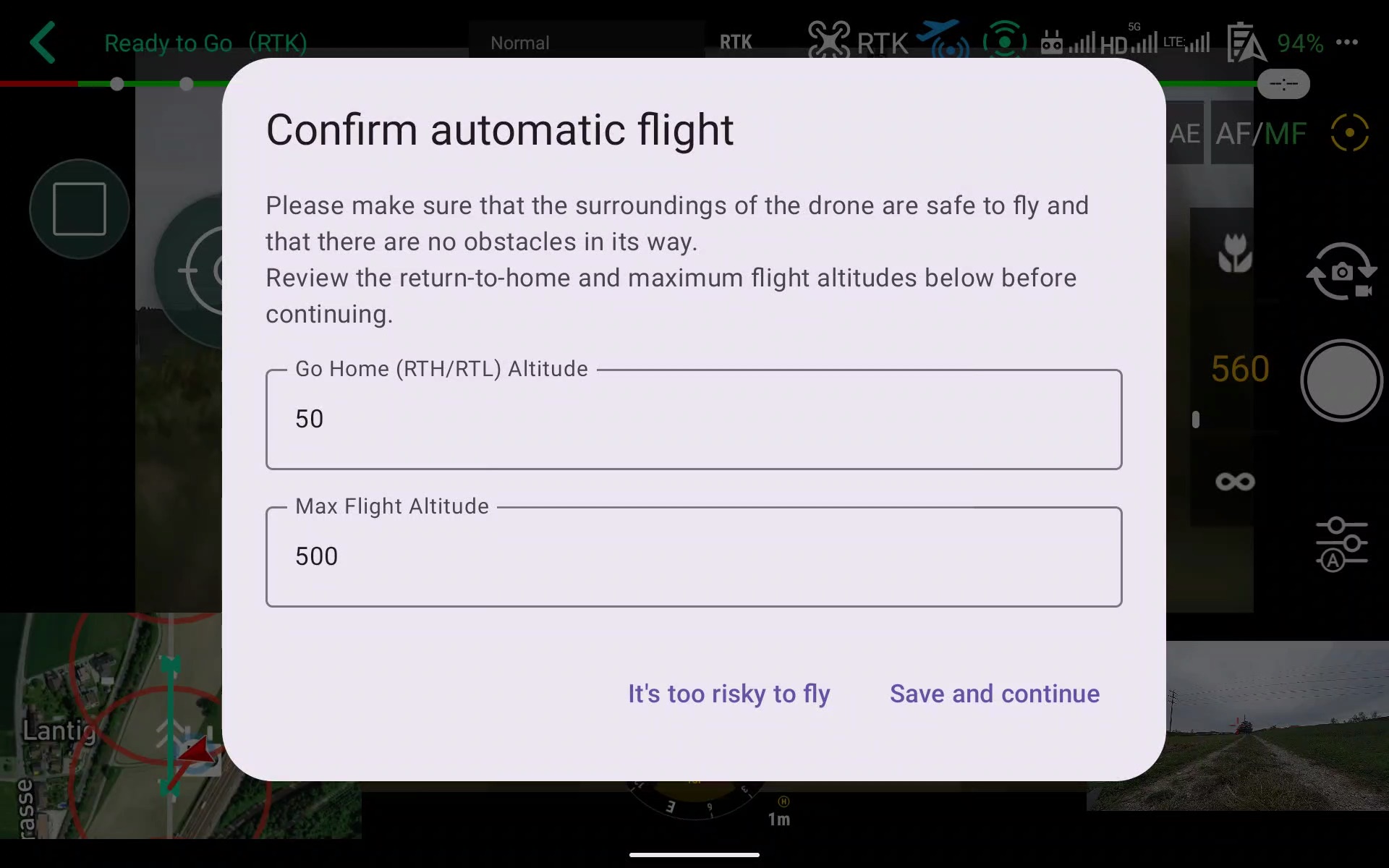
Confirm the Flight
- Make sure the surroundings of the drone are safe to fly and there are no obstacles in its way.
- Check the Go Home (RTH/RTL) Altitude and the Max Flight Altitude. Change them if needed (see Altitudes).
- Tap Save and continue. If it is not safe to fly, tap It's too risky to fly.
Altitudes
All altitudes are relative to the take-off location.
Max flight altitude
Return-to-home altitude
Go Home (RTH/RTL) Altitude: when the drone returns home, e.g. after losing the connection or with a low battery, it first climbs to this altitude. LINIAair suggests an altitude safely above the selected missions and the automatic paths to and from them.
- Set a higher altitude if needed, e.g. for tall obstacles between the missions and the take-off location.
- Make sure the altitude is safe for the area you fly in.
- The remaining flight time is calculated with this altitude. A higher altitude needs more battery.
Max Flight Altitude: the drone never flies higher than this. It must be at least as high as the return-to-home altitude and the highest point of the missions.