Mission Selection and Planning
Select Missions
- Tap a mission in the list or on the map.
- Tap more missions to add them. They are flown in the order you select them; the number next to the checkbox shows the order.
- Optional: to select several missions at once, select the start mission and tap
 . LINIAair selects the following missions automatically. Set how many missions are selected in the settings.
- Check the direction: the arrows on the map show in which direction span missions are flown. To fly them the other way, enable Fly spans in reverse in the settings.
- Connect the drone and tap Fly.
You can calibrate at any mast inside a red circle. After the calibration, the drone flies a safe path along the span lines to the first mission.
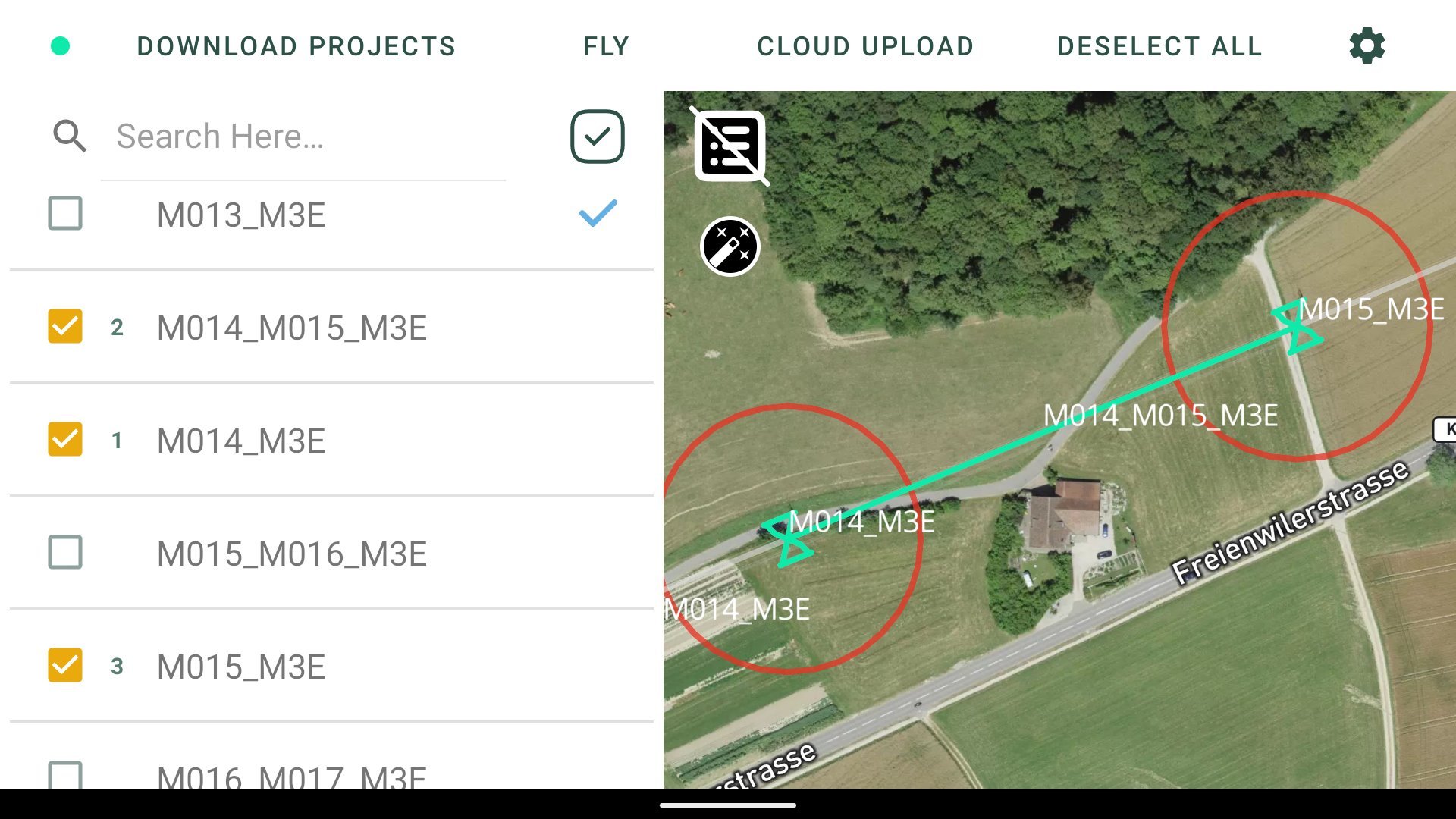
Flight order
Fly selected missions
Auto select missions
Tap a mission on the map to select it
- Flight order
- Fly selected missions
- Auto select missions
- Calibration is possible inside the red circle
- Tap a mission on the map to select it