Flight Screen
The flight screen shows the live camera view and the controls during a flight.
info
The screenshots show a DJI drone. With MAVLink drones, the camera controls and status bar look slightly different.
Camera View
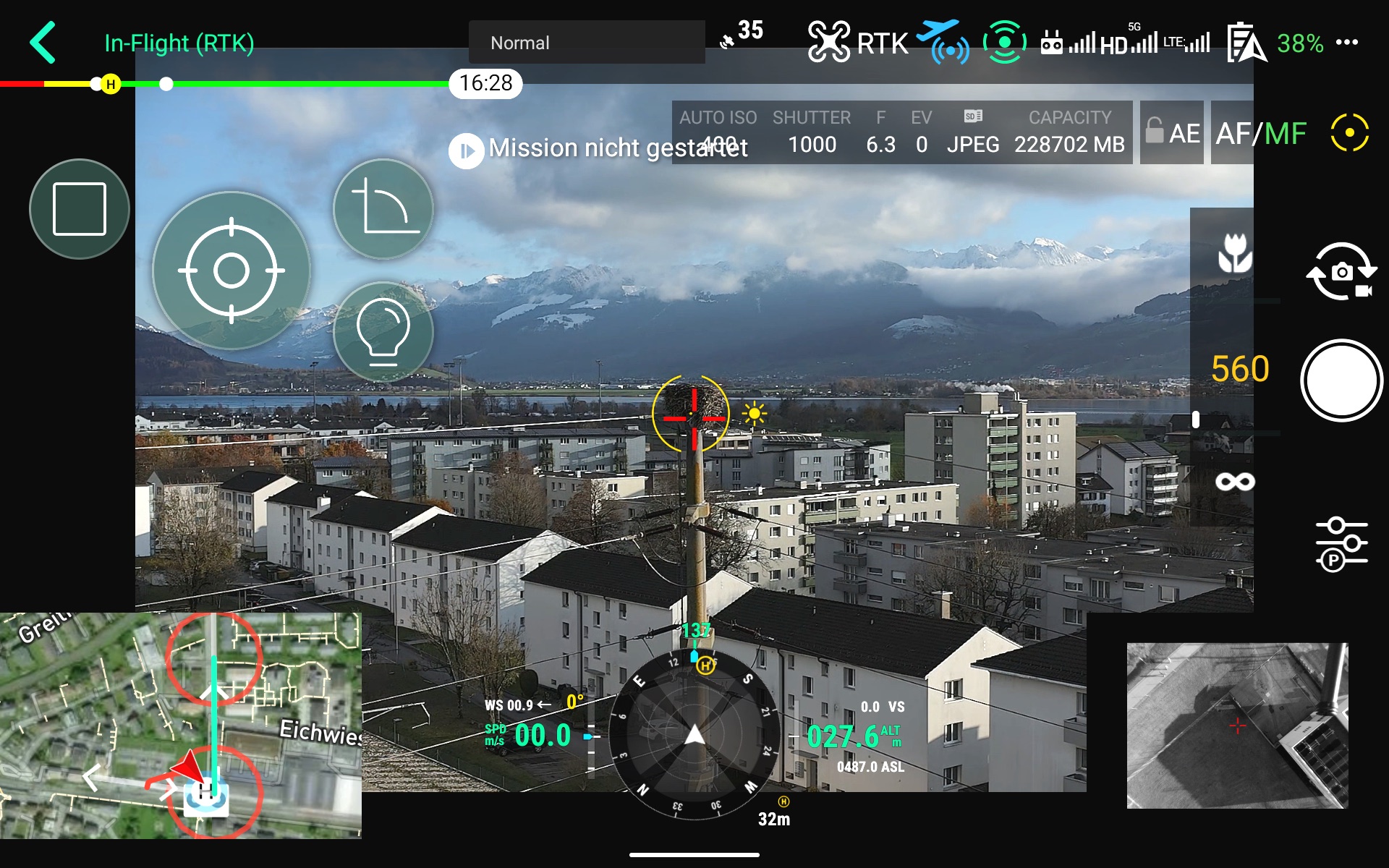
Drone status, tap to open the drone settings
Toggle beacon
Stop
Camera shutter
Collision avoidance camera
- Back to Mission Management
- Drone status, tap to open the drone settings
- Toggle beacon
- Stop
- Start the calibration
- Minimap
- Camera shutter
- Collision avoidance camera
Map View
Tap the minimap to switch to the map view.
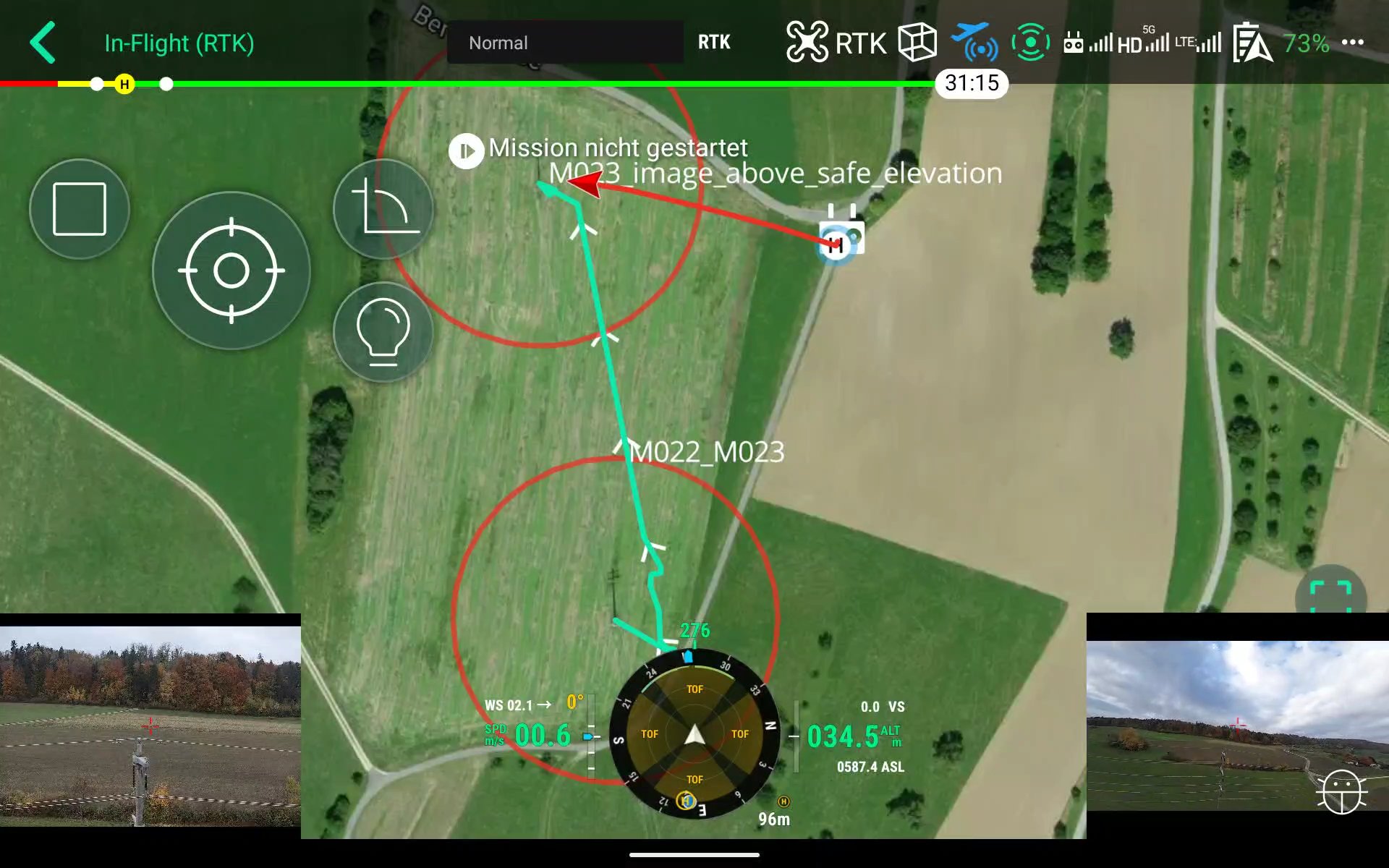
Drone location
Path already flown (red)
Controller location
Planned missions (green)
Collision avoidance camera
- Drone location
- Path already flown (red)
- Controller location
- Planned missions (green)
- Back to the main camera view
- Collision avoidance camera