RTK
RTK (Real-Time Kinematic) corrects the drone's GPS position with data from a reference station. This makes the position accurate to a few centimetres instead of a few metres with normal GPS.
If a mission needs a very precise flight path, RTK is strongly recommended. Whether a mission can be flown without RTK is the pilot's decision and responsibility. If RTK fails and the mission is too dangerous without RTK precision, it is the pilot's responsibility to refuse to fly it.
Set Up RTK
DJI Pilot and LINIAair do not share the RTK settings. Configure RTK in LINIAair, even if it is already set up in DJI Pilot.
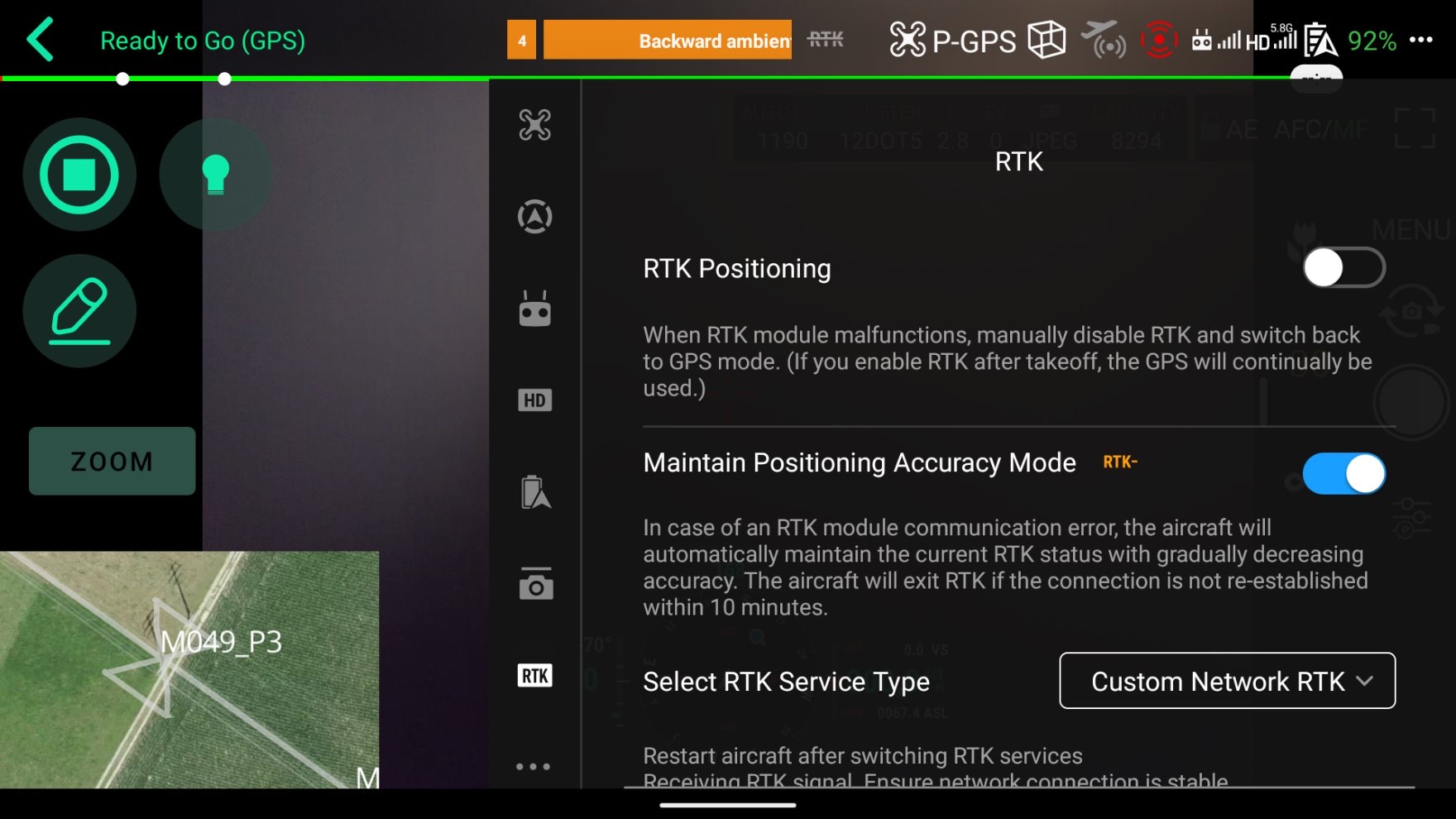
- Open the drone settings
- RTK submenu
- Turn on RTK
- Select the RTK service type
- Tap ••• in the top right corner to open the drone settings.
- Open the RTK submenu.
- Turn on RTK Positioning.
- Under Select RTK Service Type, select your RTK provider. If it is not listed, select Custom Network RTK.
- For Custom Network RTK, enter the NTRIP Host, Port, User, Password and Mountpoint, then tap Save.
Check RTK Connection
During the flight, check the RTK state with the RTK icon in the top bar. Tap it to see the details. When RTK works, RTK Status shows Connected.
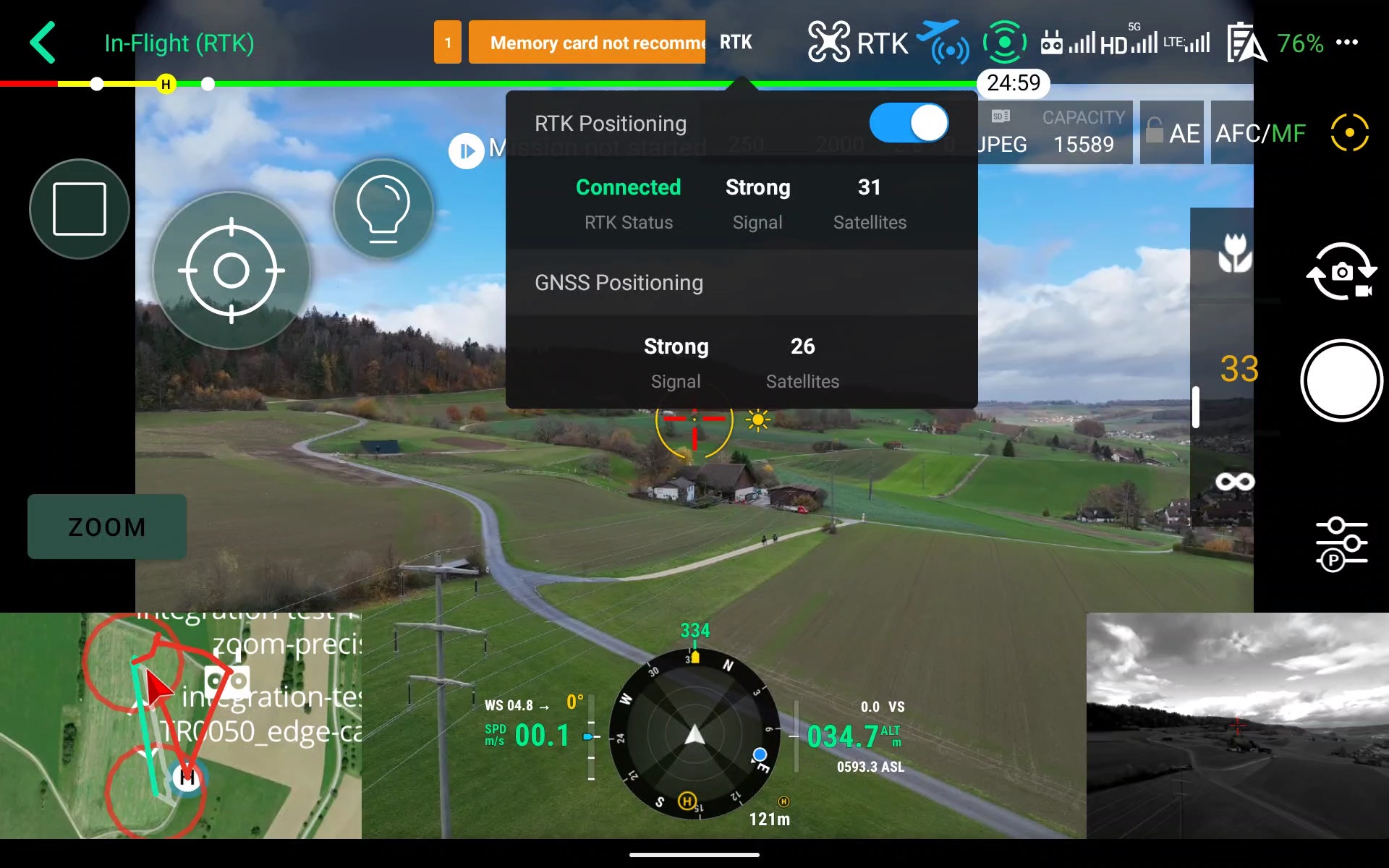
- RTK icon, tap for details
- RTK status
RTK Does Not Connect
DJI Pilot and LINIAair do not share the RTK settings. Set up RTK in LINIAair, even if it works in DJI Pilot.
If RTK still does not connect:
- Check the firmware: make sure the drone and remote controller firmware is up to date.
- Check the RTK account is not in use: with a single-license RTK account, only one device can connect at a time. Disconnect the other device.
- Check DJI Pilot: using RTK in DJI Pilot and LINIAair at the same time can cause problems. Remove the RTK settings in DJI Pilot, close DJI Pilot and connect again in LINIAair.
- Check for an outage: RTK providers occasionally have downtimes. Check your provider's status page or contact them.