Upload Images
There are three ways to get the images off the drone:
- Upload from the SD card with LINIAair
- Manage the images yourself
- Download from the drone (deprecated, few images only)
Upload From the SD Card
- Insert the SD card from the drone into the controller.
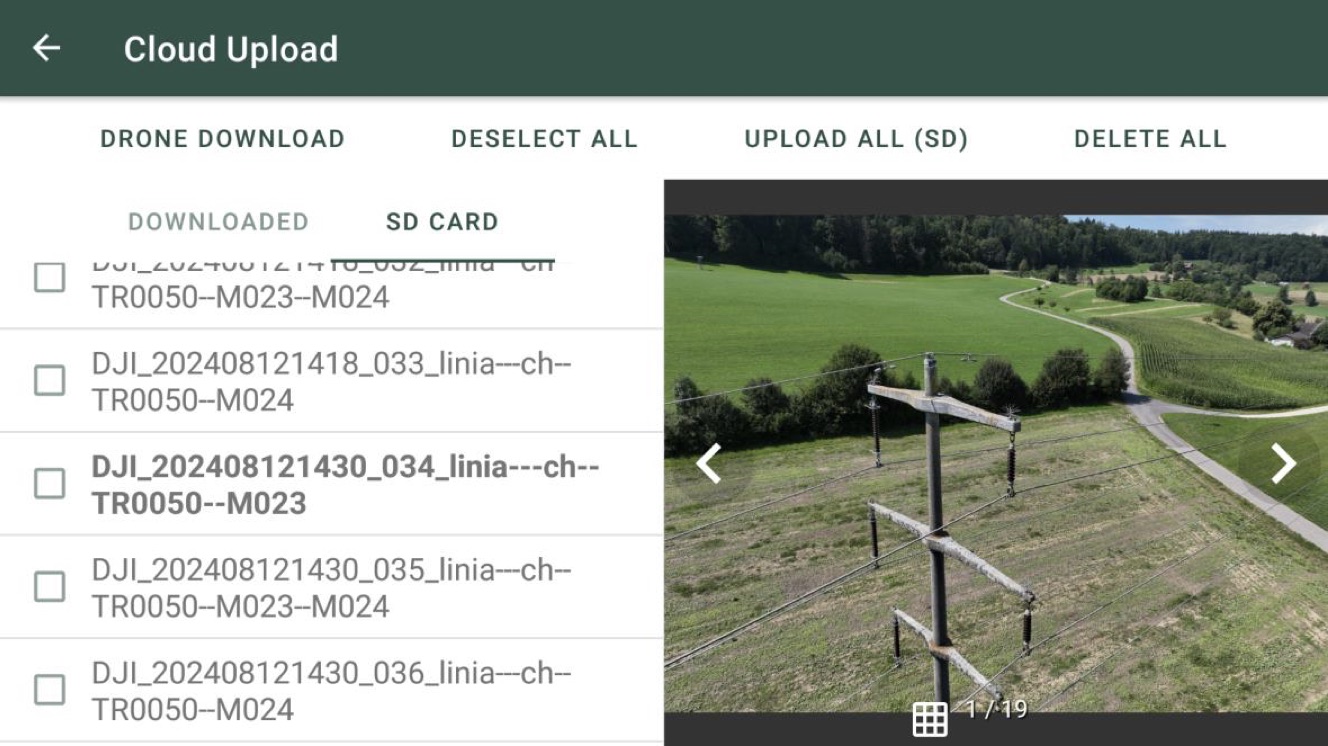
- In the main menu, open Cloud Upload and tap the SD CARD tab.
- Tap an image to preview it.
- Select folders and tap UPLOAD, or tap UPLOAD ALL (SD) to upload all images to the cloud.
tip
To delete the images from the SD card after the upload, enable Delete Images from SD card after uploading in the upload settings.
Manage the Images Yourself
Remove the SD card from the drone and transfer the images with your own tools, e.g. to a computer, a network drive or the cloud storage of your choice. LINIAair is not involved in this workflow.
Download From the Drone
warning
This workflow is deprecated and only supported for DJI M3 and M4 drones. It is only practical for a few images; larger amounts take too long. Use one of the workflows above instead.
- In the main menu, open Cloud Upload and tap the DOWNLOADED tab.
- Tap DRONE DOWNLOAD. The controller downloads the images from the drone.
- Tap an image to preview it.
- Tap UPLOAD ALL (DOWNLOADED) to upload the images to the cloud.